A Comprehensive Guide to Git: Evolution, Internals, and Best Practices for Development and Testing Teams
A Comprehensive Guide to Git: Evolution, Internals, and Best Practices for Development and Testing Teams
Git has become the de facto standard for version control in software development, enabling teams to collaborate on complex projects efficiently. Its distributed nature, powerful branching, and merging capabilities have revolutionized how teams manage codebases, making it essential for both development and QA teams to have a deep understanding of its concepts. Let’s dive into Git’s journey, the reason it was created, how it works, and how to master it effectively.

The History Behind Git: Why Was It Created?
In the early 2000s, the Linux kernel project used a proprietary version control system called BitKeeper to manage its source code. However, in 2005, the free license of BitKeeper was revoked, forcing the Linux kernel developers to seek an alternative. Linus Torvalds, creator of Linux, set out to create a new distributed version control system that would overcome the limitations of existing systems like CVS and SVN. He envisioned a system that prioritized:
- Speed: Patch handling and metadata management in other systems were slow, which was unacceptable for large-scale projects like the Linux kernel.
- Data integrity: Strong safeguards were needed to prevent accidental or malicious corruption.
- Support for distributed workflows: Developers needed to collaborate from multiple locations without relying on a central server.
Thus, Git was born. Its decentralized model allowed each developer to have a full copy of the repository, enabling offline work and robust collaboration between peers(git).
How Git Works: Internals and Indexing
Git functions as a distributed version control system, where every user has a local copy of the repository, including the full history of changes. This is a key differentiator from centralized systems like SVN, which rely on a central server for most operations. In Git, local operations are fast because all data is available on your machine. Let’s explore some key components:
1. Snapshots, Not Deltas
While earlier systems like SVN store differences (deltas) between file versions, Git takes a different approach. It creates snapshots of the entire file system at a given point in time. If a file has not changed, Git doesn’t store the file again but simply links to the previous identical file.
2. Index (Staging Area)
The index or staging area is where files are prepared before they are committed to the repository. When you modify files, they aren’t immediately part of the next commit; they need to be staged using the git add command. This staged snapshot is then committed.
3. Git Object Model
Git stores four main types of objects:
- Blobs: Store file content.
- Trees: Store directory structures and references to blobs or other trees.
- Commits: Store metadata and pointers to tree objects, representing a snapshot of the repository.
- Tags: Store references to specific commits, often used for marking release points.
Each object is identified by a SHA-1 hash that ensures data integrity. These hashes are fundamental to Git’s structure, making it impossible to modify a commit history without invalidating the entire repository’s chain.
The .git Directory Structure
When you initialize a Git repository, a hidden .git folder is created. This folder contains all the information Git needs to track the project, including:
- config: Repository configuration file.
- objects/: The object store containing all blobs, trees, commits, and tags.
- refs/: Pointers to commit objects for branches and tags.
- HEAD: Points to the current branch reference.
- index: Represents the staging area.
This structure allows Git to maintain the history and metadata required to track every change(git).
Timestamp and Change Tracking in Git
Git keeps track of changes using timestamps and checksums (SHA-1 hashes). When a file changes, Git checks the modification time to detect differences and then stages those differences using git add. Once committed, the changes are permanently stored in the repository’s history.
Branching in Git: Managing Code Versions
One of Git’s most powerful features is its branching model. Branches allow teams to work on multiple features or bug fixes simultaneously, without affecting the main codebase. Branches in Git are incredibly lightweight — they are just pointers to specific commits.
1. Main Branch (main or master)
The main branch is typically where the stable version of the project lives. All new development should eventually be merged into main, but not directly. Instead, developers work on separate branches, typically named after the feature they are working on.
2. Development Branches
You can create a new branch for each feature, bug fix, or experiment using the following command:
git checkout -b feature-branchThis creates a new branch called feature-branch and switches to it. You can then work on your changes without affecting the main branch. Once the feature is complete, you can merge it back into main:
git checkout main
git merge feature-branch
Tracking Branches and Remote Repositories
Git keeps track of remote branches (those on the server) and local branches. After pushing a branch to a remote repository, Git establishes a connection between the local branch and the remote branch. You can list all branches and their tracking status using:
git branch -vvEssential Git Commands: Detailed Breakdown
Let’s take a closer look at the core Git commands that are used to manage the repository.
1. git add
The git add command stages changes for the next commit. You can add specific files or directories:
git add file.txtTo add all changes in the current directory:
git add .2. git commit
The git commit command records the staged changes to the repository. Always write meaningful commit messages that describe the purpose of the commit:
git commit -m "Implemented new feature"3. git push
After committing changes, use git push to upload them to a remote repository, making them available to other collaborators:
git push origin mainThis pushes the local main branch to the origin remote repository.
Rebase vs. Merge: A Closer Look
Both merging and rebasing are used to integrate changes from one branch into another, but they function differently.
- Merging: Combines two branches, creating a merge commit that reflects both histories. It preserves the history of both branches.
- Rebasing: Reapplies commits from one branch on top of another, giving a cleaner, linear history but rewrites the commit history.
git checkout feature-branch
git rebase main
Why rebase can be tricky: Rebasing rewrites history, which can cause issues if you’ve already shared your branch with others. Always avoid rebasing public branches as it can lead to confusion and conflicts.
Handling Conflicts During Rebase or Merge
Conflicts arise when two branches modify the same part of a file. Git will pause the operation and prompt you to resolve the conflict. To handle conflicts:
- Identify conflicting files: Git will mark these files with conflict markers.
- Edit the files to choose which changes to keep or combine the changes.
- Stage the resolved files using
git add.
git add resolved-file.txt
git rebase --continue
Best practices for resolving conflicts:
- Communicate with your team: Avoid conflicts by coordinating changes in advance.
- Use smaller commits: Smaller, atomic commits are easier to manage during merges.
- Test thoroughly after resolving conflicts to ensure functionality isn’t broken.
Cherry-picking: Selectively Applying Commits
Sometimes you may want to apply a specific commit from one branch to another without merging the entire branch. This is where git cherry-pick comes in:
git cherry-pick <commit-hash>This command applies the selected commit to your current branch.
The Importance of .gitignore
The .gitignore file is essential for keeping your repository clean by excluding unnecessary files, like build artifacts, logs, or sensitive information such as API keys or configuration files. A well-configured .gitignore file might look like this:
/node_modules
.DS_Store
.env
This prevents these files from being accidentally committed to the repository.
Best Practices for Using Git in Development and QA
- Commit frequently: Regular commits with descriptive messages make it easier to track changes and roll back if needed.
- Use branches for features: Keep the
mainbranch stable and create separate branches for each new feature or bug fix. - Avoid rebasing shared branches: Rebasing can confuse others who have pulled your changes.
- Resolve conflicts carefully: Ensure you test thoroughly after resolving any merge or rebase conflicts.
- Use
.gitignoreto avoid unnecessary files from cluttering your repository.
Here’s a practical breakdown of Git commands with Java code examples, showing how developers can manage a Java project with Git. These examples will guide you through setting up a Git repository, creating branches, committing changes, and handling advanced Git operations — all in the context of a Java project.
1. Initialize a Git Repository
Let’s say you’re starting a new Java project. First, create a directory for your project and initialize it with Git.
mkdir MyJavaProject
cd MyJavaProject
git init
This command creates a new Git repository in your project folder, setting up the .git folder to manage your code.
2. Add Java Code and Track with Git
Create a Java file, for example, App.java:
// App.java
public class App {
    public static void main(String[] args) {
        System.out.println("Hello, Git!");
    }
}
Now, stage and commit this file to the repository:
git add App.java
git commit -m "Initial commit: Add App.java with Hello World"
This stages App.java and commits it to the repository with a message.
3. Creating and Switching Branches
Branches allow you to work on new features without affecting the main code. Let’s create a feature branch to add new functionality.
git checkout -b feature/add-loggingThis command creates and switches to a new branch named feature/add-logging. Now, add logging functionality to the app.
Updated App.java in feature/add-logging
import java.util.logging.Logger;
public class App {
    private static final Logger logger = Logger.getLogger(App.class.getName());
    public static void main(String[] args) {
        logger.info("Application started");
        System.out.println("Hello, Git!");
        logger.info("Application finished");
    }
}
After modifying App.java, you can add and commit your changes.
git add App.java
git commit -m "Add logging functionality to App.java"
4. Merging Branches
When you’re satisfied with the changes in feature/add-logging, you can merge them into the main branch.
git checkout main
git merge feature/add-logging
Git merges the changes from feature/add-logging into main. If there are conflicts, Git will prompt you to resolve them before completing the merge.
5. Handling Conflicts
Suppose another developer has made changes to App.java on the main branch:
public class App {
    public static void main(String[] args) {
        System.out.println("Welcome to the Git tutorial!");
    }
}
Now, if you try to merge feature/add-logging into main, Git will show a conflict in App.java.
Resolving the Conflict
Open App.java, and you’ll see Git markers indicating the conflict:
public class App {
    public static void main(String[] args) {
<<<<<<< HEAD
        System.out.println("Welcome to the Git tutorial!");
=======
        logger.info("Application started");
        System.out.println("Hello, Git!");
        logger.info("Application finished");
>>>>>>> feature/add-logging
    }
}
Edit the code to resolve the conflict, then add and commit the resolved file:
// Resolved App.java
import java.util.logging.Logger;
public class App {
    private static final Logger logger = Logger.getLogger(App.class.getName());
    public static void main(String[] args) {
        logger.info("Application started");
        System.out.println("Welcome to the Git tutorial!");
        logger.info("Application finished");
    }
}
git add App.java
git commit -m "Resolve conflict between main and feature/add-logging"6. Rebasing a Feature Branch
Suppose you want to rebase feature/add-logging onto the latest main branch instead of merging. Check out the feature/add-logging branch and rebase it:
git checkout feature/add-logging
git rebase main
This replays the commits from feature/add-logging onto the tip of main, creating a linear history. Be careful when rebasing, especially if you’ve already pushed your branch to a remote repository.
7. Cherry-Picking Commits
Imagine you made a specific commit on feature/add-logging that you want to apply directly to main. Use git cherry-pick with the commit hash:
git checkout main
git cherry-pick <commit-hash>
This applies the specific commit to the main branch without merging all changes from feature/add-logging.
8. Using .gitignore for Java Projects
Create a .gitignore file to exclude files that shouldn’t be tracked, such as compiled classes or IDE configuration files:
# .gitignore for Java projects
*.class
*.log
target/
Adding .gitignore helps keep the repository clean by excluding unnecessary files. To apply .gitignore, make sure it’s added and committed:
git add .gitignore
git commit -m "Add .gitignore file for Java project"
Configuring git pull to Avoid Rebase: git config pull.rebase false
When you set git config pull.rebase false, you explicitly tell Git not to use the rebase strategy when you run git pull. Instead, Git will merge the changes from the remote branch into your local branch if there are any differences.
Key Points of pull.rebase false
- Merges Instead of Rebasing: With
pull.rebase false, Git will always perform a merge when your local branch and the remote branch have diverged. - Maintains Merge History: This setting is ideal if you prefer to keep the history exactly as it is, with explicit merge commits that show where branches were merged together. This can make it easier to visualize the points at which integration of changes occurred.
- Easier Conflict Resolution: When conflicts arise during a merge, they are easier to handle since all conflicts are resolved in a single merge commit, as opposed to resolving conflicts at every step (which can occur during a rebase).
Example Command
git config --global pull.rebase falseThis sets the pull.rebase option to false globally, meaning git pull will always use merge by default unless overridden. If you want this to apply to a specific repository only, remove the --global flag.
Configuring git pull to Use Rebase: git config pull.rebase true
When you set git config pull.rebase true, Git will use rebase instead of merge when you run git pull. This tells Git to replay your local commits on top of the latest commits from the remote branch, creating a linear history without merge commits.
Key Points of pull.rebase true
- Rebases Instead of Merging: With
pull.rebase true, Git will rebase your local commits onto the latest changes from the remote branch, keeping a linear commit history without merge commits. - Cleaner Commit History: This configuration is useful if you prefer a cleaner, linear history without extra merge commits. Rebasing essentially “replays” your local changes on top of the latest changes in the remote branch, making it appear as though you developed them directly after the remote changes.
- Potentially More Conflict-Intensive: During a rebase, conflicts can arise at each commit that needs to be rebased, making conflict resolution potentially more complex. However, the result is a cleaner history.
Example Command
git config --global pull.rebase trueBy setting pull.rebase to true, Git will default to using rebase when you pull changes from a remote repository. As before, removing the --global flag will apply this setting only to the specific repository.
Comparison of pull.rebase false vs. pull.rebase true
Here’s a summary to help you decide which configuration is best suited for your workflow:
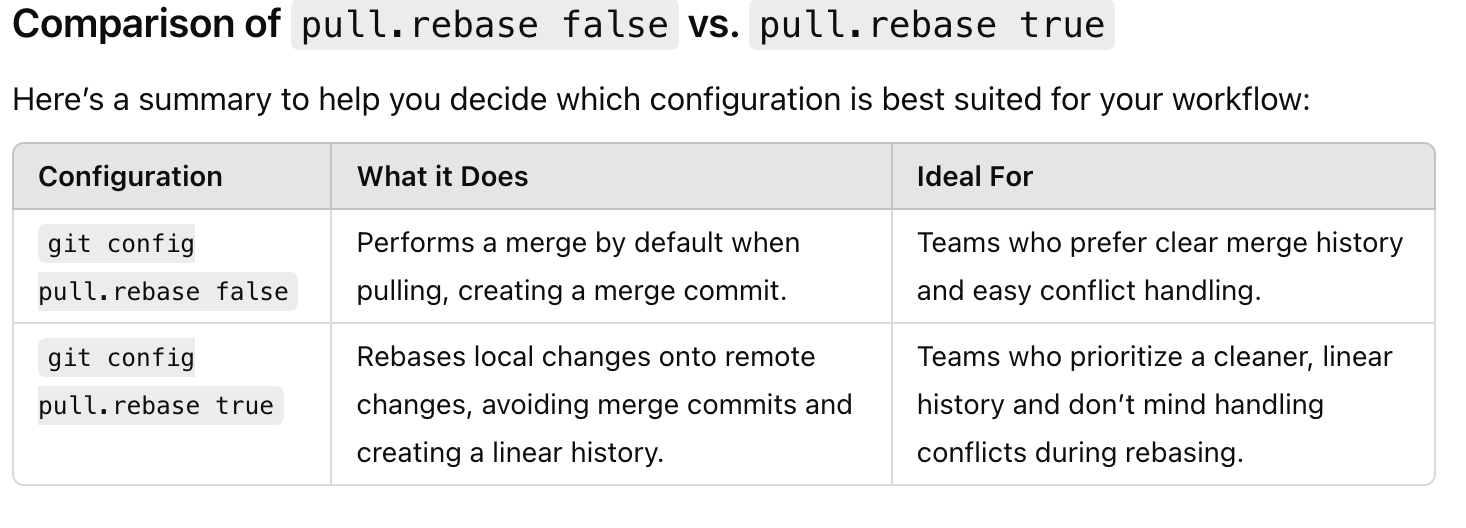
Choosing the Right Option
- Choose
pull.rebase falseif you’re working in a collaborative environment where tracking merges is important. This setting makes it easy to identify when branches were merged together, which can help with debugging or reviewing changes. - Choose
pull.rebase trueif you prefer a linear history for simplicity and readability, especially in projects where a clean history is prioritized over retaining merge information.
Each approach has its advantages, and understanding them helps you tailor Git’s behavior to suit your specific workflow and collaboration needs.
Comments
Post a Comment